
Contact Policy Reports
Allows you to view, generate, and manage different types of Contact Policy Reports.
The Contact Policy Reports feature allows you to generate the following three Report Types:
- Group Membership Activity - Allows you to view the top 10 Membership Group Activities in descending order, and their details in the selected Timeframe. After the report is generated, you can filter the report data by group in the user interface. You can also download the report, which includes all groups in the selected Timeframe, regardless of the groups selected in the user interface.
- Group Activity by Method - Allows you to view the data of one selected Group such as Group Optins and Optouts by method. Essentially, the method in this context is the source while adding or updating a consumer. Method in the current context means the source defined in the API. For example, the SMS, Campaign, Email, WhatsApp through which the member has opted in/out.
- Group Activity by Keyword - Allows you to view the data of a selected Group by calling out keywords. The keywords and their associated Optins and Optouts are displayed in the reports. The keyword in this context is the keyword defined while adding or updating a consumer.
Note
Please note that the time is displayed for the time-related fields is in the UTC format.
Accessing Reports
To access the Contact Policy Reports:
-
Log in to the Webex Connect platform.
-
Click App Tray > Contact Policy.
-
Click Reports.
-
In the Report Type drop-down, select one of the following methods, refer to the respective section, and return to perform the next step in this procedure.
-
In the Timeframe drop-down, select one of the options below.
- Yesterday
- Last 7 Days
- Last 30 Days
- Month to Date
- Custom Date - The information for upto past 6 months can be selected.
-
If you selected Group Activity by Method or Group Activity by Keyword, select an option from the Group drop-down.
These reports do not have a download capability.
For Group Membership Activity reports, the Group drop-down is displayed after you generate the report, if data is available for the selected Timeframe.
-
Click Generate Report. Refer to the sections below for information displayed for each of the Report Types.
-
For Group Membership Activity reports, select one or more groups from the Group drop-down to filter the generated report data and display the filtered data in the user interface.
The Group drop-down displays only the groups that have membership activity data for the selected Timeframe.
-
For Group Membership Activity reports, click Download to download the generated report data.
The report is downloaded in .xlsx format with the file name
<Report Name>_<Datetime>.xlsx. The downloaded report lists all groups in the selected Timeframe, regardless of the groups selected in the user interface.
Note
- For Group Membership Activity reports, you can download the generated report data. The Download option is displayed only after the report is generated and data is available for the selected Timeframe.
- The Download option is not displayed for Group Activity by Method and Group Activity by Keyword reports.
Filter and Download Group Membership Activity Reports
After you generate a Group Membership Activity report, you can filter the generated report data by group and download the report.
The Group drop-down is displayed only for Group Membership Activity reports. It lists the groups that have membership activity data for the selected Timeframe. Select one or more groups from the drop-down to filter the report table and display the filtered data in the user interface.
The report table displays the top groups sorted by Membership Activity in descending order by default.
To download the report, click Download. The downloaded file includes all groups in the selected Timeframe, regardless of the groups selected in the user interface. The downloaded file also includes the report data and column headers.
Note
The Group drop-down and Download button are displayed only when report data is available for the selected Timeframe. If no data is available, these options are not displayed or are disabled.
Report Fields for Group Membership Activity
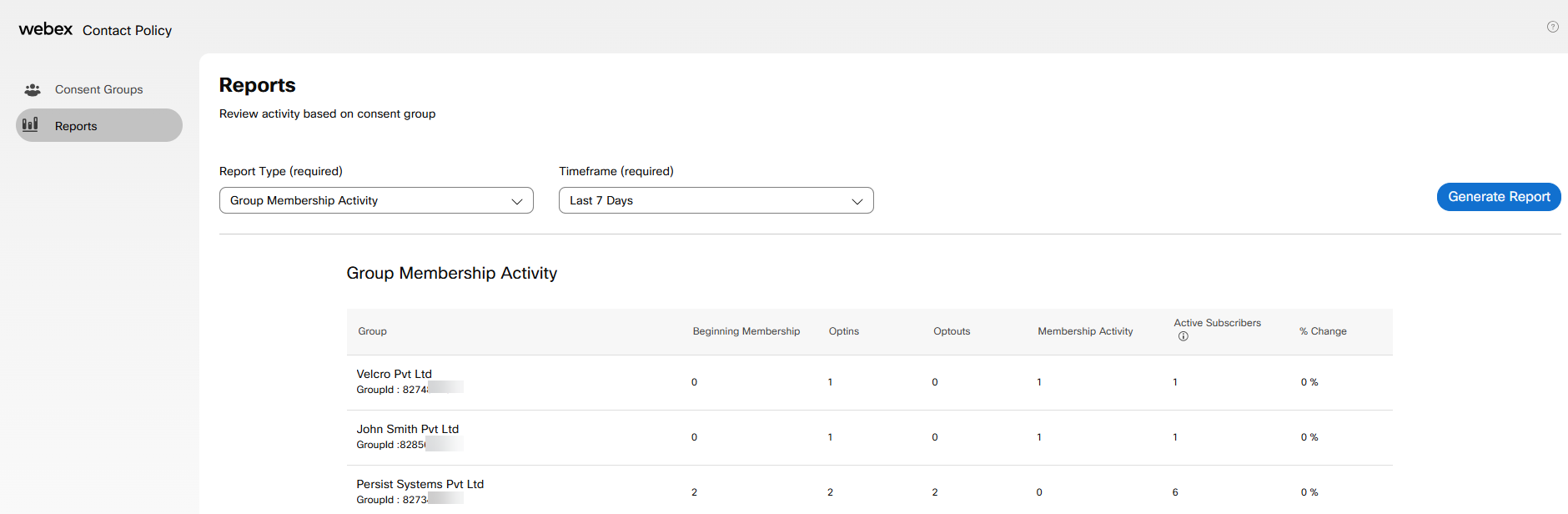
Snapshot of Group Membership Activity Report
The Group Membership Activity report is sorted by Membership Activity in descending order by default. The report displays the top 10 groups for the selected Timeframe. You can use the Group drop-down to filter the generated report data and display the filtered data in the user interface.
The sections displayed are:
- Group - The name of the Consent Group.
- Beginning Membership - The number of Consent Group members providing their consent at the beginning of the reporting period.
- Optins - The number of Consent Group members those have opted in or provided their consent in the reporting period. This also includes the members who were opted out, but later opted in (changed their consent to ‘true’) later on, in the reporting period.
- Optouts - The number of new customers who have opted out during the reporting period. The reporting period can have an addition of multiple new consenting customers in the period, if there was a change in consent if customers who had Opted in earlier, but opted out later.
- Membership Activity - The count of new consumers who have opted in and any changes from consenting customers to non-consenting customers.
- Active Subscribers - The total number of active subscribers in a group reflects all currently active members, and this count remains unchanged regardless of any selected reporting period or range.
- % Change - The number of membership activities that has been changed in percentage value from the beginning of the selected period.
Report Fields for Group Activity by Method
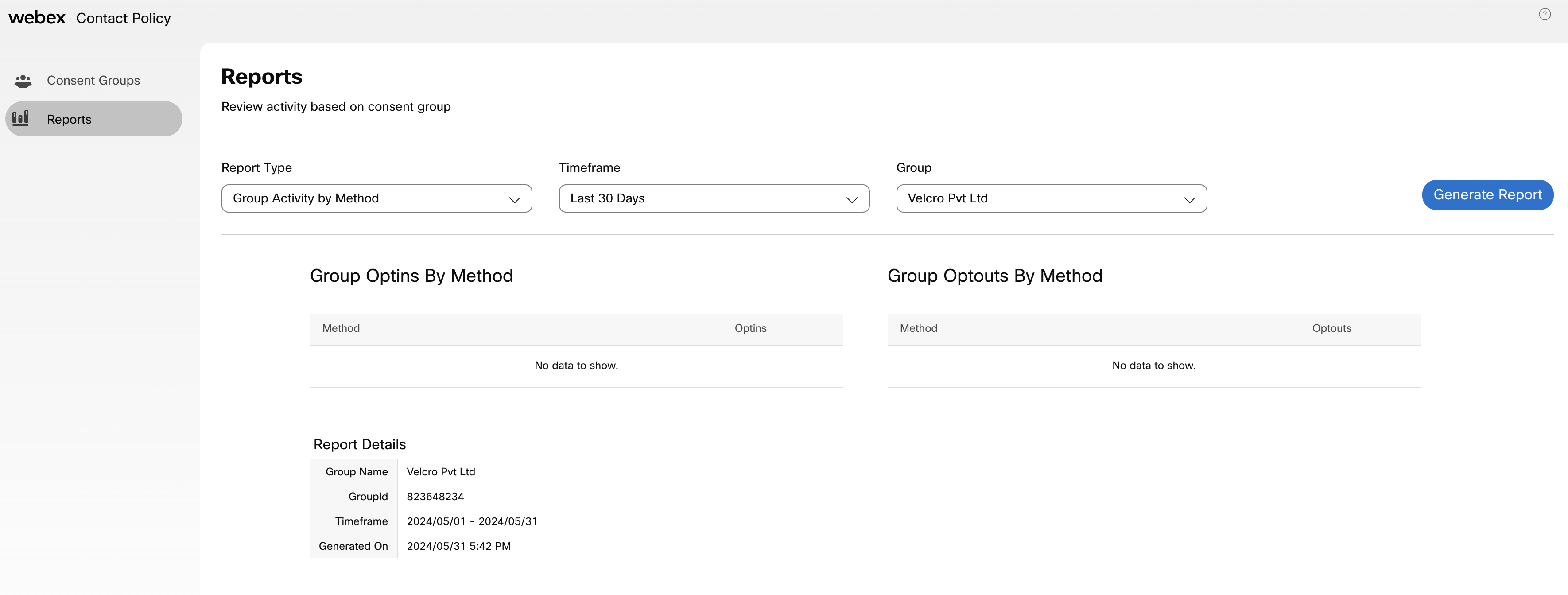
Snapshot of Reports - Group Activity by Method
The sections displayed are:
- Group Optins By Method
- Group Optouts By Method
- Report Details
- Group Name - The name of the group created.
- GroupId - The unique identifier of the group created.
- Timeframe - The time period for generating the report.
- Generated On - The report generation date and time.
Report Fields for Group Activity By Keyword
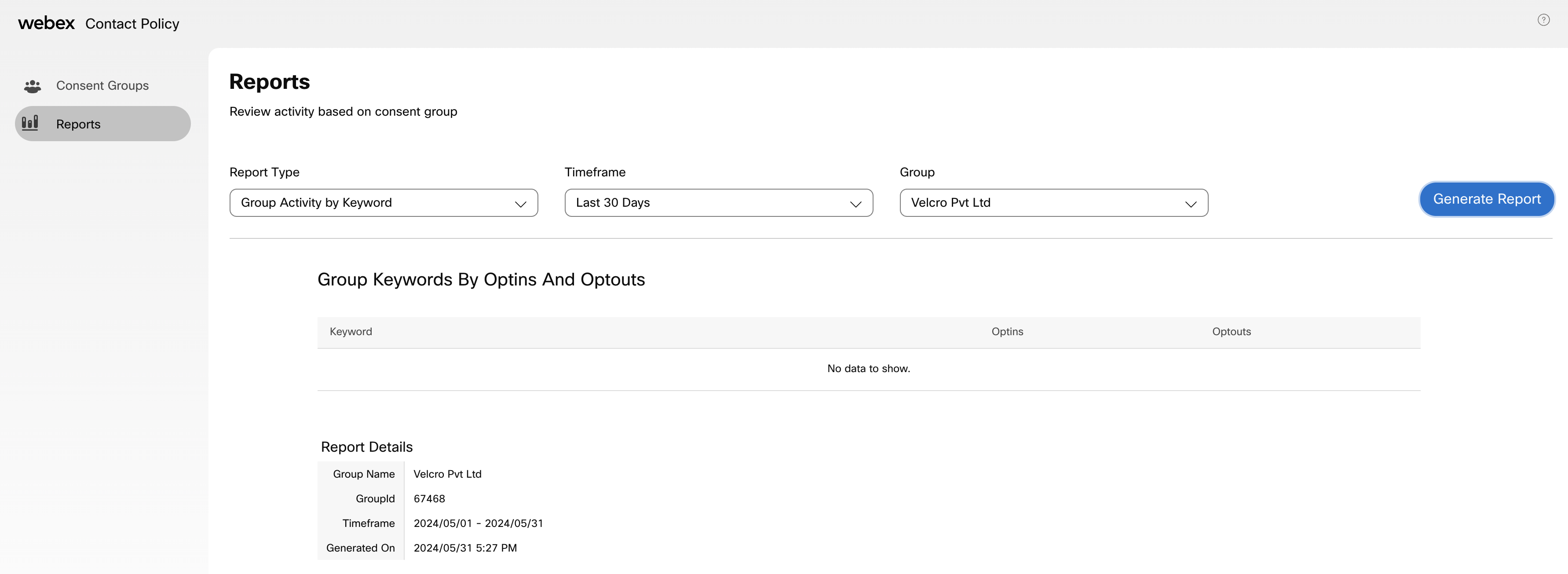
Snapshot of Reports - Group Activity by Keywords
The sections displayed are:
- Group Keywords By Optins And Optouts
- Keyword
- Optins - The number of Consent Group members those have opted in or provided their consent in the reporting period. This also includes the members who were opted out, but later opted in (changed their consent to ‘true’) later on, in the reporting period.
- Optouts - The number of new customers who have opted out during the reporting period. The reporting period can have an addition of multiple new consenting customers in the period, if there was a change in consent if customers who had Opted in earlier, but opted out later.
- Report Details
- Group Name - The name of the group created.
- GroupId - The unique identifier of the group created.
- Timeframe - The time period for generating the report.
- Generated On - The report generation date and time.
Updated 2 months ago