
Brands & Campaigns (10DLC)
Understand what is Brands & Campaigns (10DLC) and the various modules present in it and how to access and create a brand and campaign
You can perform the following functions in the Webex Connect platform related to Brands and Campaigns:
Coming soon: USA 10DLC number automation
Webex Connect is introducing an automated workflow for US 10DLC registration and number management. The workflow supports brand and campaign registration, 10DLC number purchase, Bring Your Own Number (BYON) or Port Number, Number Pool requests, compliance review and approval, and number provisioning.
This capability will initially be available through an Early Access release. Availability and release timing may vary by account and region. Contact your Webex Connect account representative for more information.
10DLC module available only in the US region
The 10DLC (10-Digit Long Code) module is currently available exclusively in the US region. If you’re located outside of the U.S., you need to contact support for your phone number requests.
The U.S. customers who have created brands using any third-party applications will find the Get Number option disabled in the Webex Connect portal. To obtain the number, please contact support for assistance.
The Webex Connect integrated with The Campaign Registry (TCR) is an independent Reputation Authority chosen by Mobile Network Operators (MNOs) to collect Brand and Campaign data in order to allow for transparency on the 10DLC network. The registry supports a sanctioned A2P 10 Digit Long Code (10DLC) text messaging Campaign ecosystem and provides visibility into the messaging source and content, allowing MNOs in the United States to provide a more reliable and predictable messaging service for the Webex Connect Platform clients.
You can perform the following functions in the Webex Connect platform related to Brands and Campaigns:
-
Creating and managing brands
-
Creating and managing campaigns
-
Assigning a 10DLC number to a campaign
Accessing Brands & Campaigns
To access the Brands & Campaigns page:
-
Log in to the Webex Connect platform.
-
Click Assets > 10DLC.
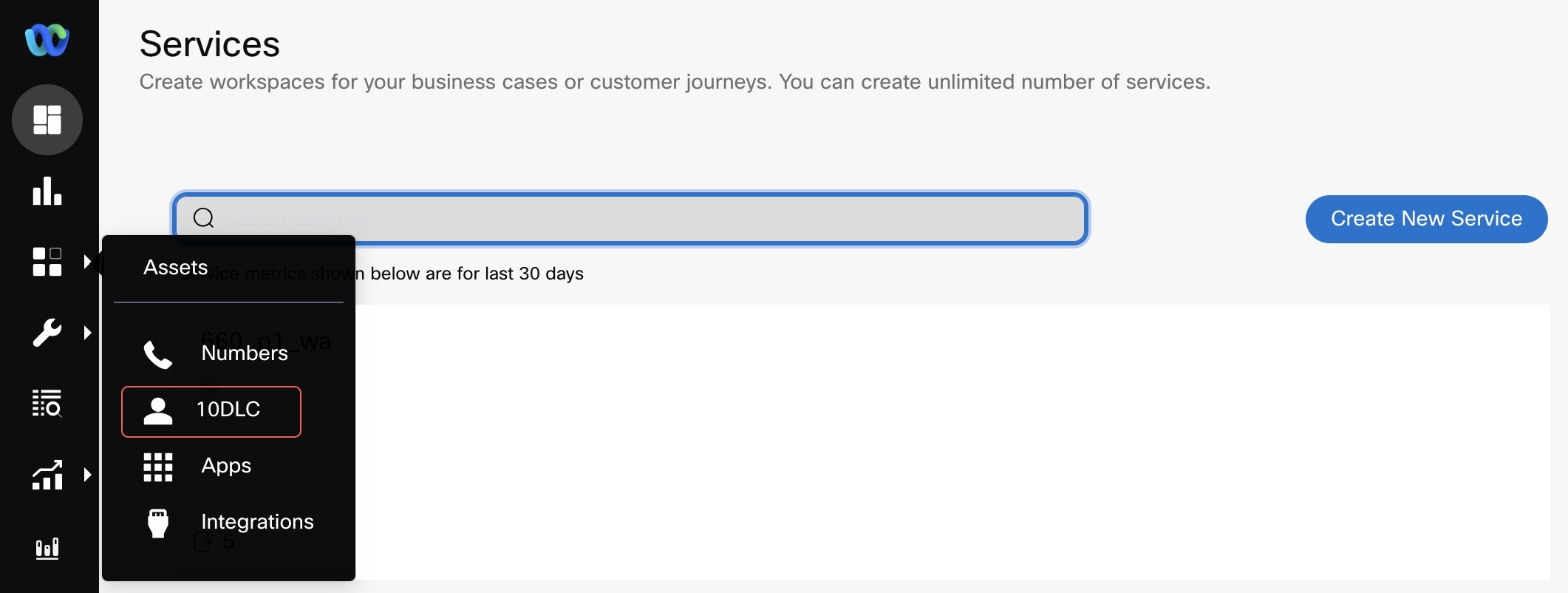
Screenshot of Selecting the 10DLC in Assets Menu.
Notes
In the Create Brand and Register Campaign page, the Create or Register buttons are enabled after all the mandatory fields are entered or selected.
It is mandatory to enter the Legal Company Name and Brand Name fields when the type of organization is Proprietor for a brand.
You cannot create a campaign for a brand if the status for a brand is Unverified.
Updated 16 days ago