
Sender ID
A Sender ID is a name or number that an SMS appears to come from (from address) when you receive a message on your mobile phone.
A Sender ID is the from address of an SMS or text message. A Sender ID can be a meaningful word, abbreviation, or an alphanumeric string that represents your brand.
Alphanumeric Sender IDs
Alphanumeric Sender IDs send only one-way messages and do not allow the customers to reply. We recommend keeping alphanumeric Sender IDs between 3 and 11 characters due to variable network specific limitations.
The sender ID allows the sender to send messages using a string constructed with a combination of alphabetic characters (a-z, A-Z) and/or numeric (0-9) characters, as well as white spaces.
Multiple Geographic Locations
Sender IDs are governed by local regulations in different geographies. You may need to contact our support team, if you intend to use a single Sender ID across multiple geographic locations.
AI Agent Messaging for Sender IDs
You can make eligible alphanumeric Sender IDs available to AI agents for outbound SMS messaging. AI agents can use only those Sender IDs that are enabled for AI Agent Messaging and mapped to the selected use case.
Alphanumeric Sender IDs support outbound, one-way SMS messaging only. Customers cannot reply to messages sent from an alphanumeric Sender ID. Sender ID availability and usage are subject to regional carrier and regulatory requirements.
Before you begin:
- AI Agent Messaging must be enabled in Tenant Settings.
- The Sender ID must be approved and available for outbound messaging.
- Identify the use cases for which AI agents can use the Sender ID.
To enable a Sender ID for AI Agent Messaging:
- Go to Assets > Sender IDs.
- Select the Sender ID that you want to update.
- In the AI Agent Messaging section, enable the Sender ID for AI agent use.
- Under AI Agent Use Cases, select one or more use cases.
- Click Save.
The Sender ID is returned to AI agents only when they request sender IDs for the matching channel and use case.
Get a Sender ID
Select Numbers from the Assets menu and choose the Sender ID option from the Get Numbers drop-down list box.
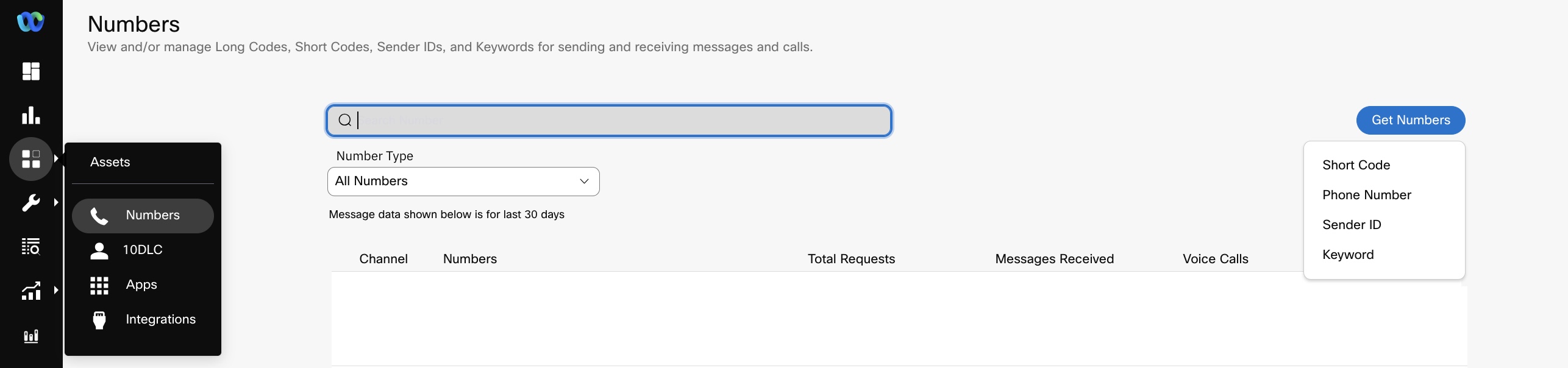
Screenshot of Getting a Sender ID.
Select the country for which you need the Sender ID. Depending on the country you select, the supported features of the sender ID are selected by default.
Enter Comments in the designated text box to provide additional information about your use case. Webex Connect uses this information to create the sender ID with a quick turnaround.
Sender ID Allocation
For countries where you need to request for a Sender ID, our operations team will respond to you within three working days.
DLT Registered Numbers

Entity ID for number registered on the DLT portal
Only numbers registered against your DLT primary entity can be used for SMS communications within India.
In the Short Code page > Registered on the DLT portal section >, select your Entity ID from the Entity ID drop-down menu.
Updated 27 days ago