
Salesforce CRM
Use this node to easily perform CRUD operations on all standard and custom Salesforce objects.
Introduction
Webex Connect offers an out of the box pre-built integration node for Salesforce that enables you to easily perform CRUD operations on all standard and custom Salesforce objects. You can also use SOQL queries on all standard and custom Salesforce Objects within a Webex Connect flow to retrieve information from your Salesforce CRM.
In previous versions, this integration allows you to insert, update, delete, and retrieve contacts from your Salesforce account within a flow. Additionally, you can get, insert, or update cases in your Salesforce account using this node. It also allows you to Create, Get, Update, or Delete Record in your Salesforce account.

Screenshot of Salesforce CRM
Version Supported
The latest version (v2.1) of the integration lets you select the Salesforce API version. Where as the versions older to v2.0 uses Salesforce API v43.0.
Pre-requisites
To get Salesforce nodes enabled:
- This node needs to be enabled for your Webex Connect tenant and is not available by default. Please contact your account manager in case you wish to enable it for your account.
- Tenant would need a Salesforce account.
- This integration is available only in the cloud version of Webex Connect.
- Callback URLs for all your pre-built integrations, custom integration configurations, that use OAuth 2.0 authorization with ‘Auth Code’ Grant Type will be updated with Webex Connect branded URLs. This doesn’t impact functioning of any of your existing integration configurations until the Refresh Token for that integration expires or until you decide to reauthorize. In either of these two cases, you would need to start using the new Callback URL provided on Webex Connect UI in the third-party application you have integrated with. Another example of this is OAuth 2.0 based authentication for Gmail when using SMTP for Outbound Email channel configuration which is currently available only for Webex Connect tenants used for Webex Contact Center Integration.
Please make sure your applications, firewalls, etc. do not restrict access to these new Callback URLs in case you have an internal policy/practice to add these URLs to the allow/accept. - Know your Salesforce Org. Instance – Salesforce Org. instance ID is used in the API to connect with Salesforce. Each Salesforce org. has a unique instance, and the same can be obtained from Salesforce.
- For Classic: Click on Setup | Under Administer | Company Profile| Company Information
- For Lightning: Click on Gear Icon|Setup|Company Settings|Company information
Some examples-
Example 1- if your domain is https://na91.salesforce.com then your Salesforce Org. instance should be na91
Example 2 – if your domain is https://acme.my.salesforce.com then your Salesforce Org. instance should be acme.my
For more information, refer to Salesforce Org instances.
Node Configuration
Drag-and-drop the node onto the visual flow builder and double-click the node to configure it.
Note
Please note that the latest version of the Salesforce CRM node that you should use is v1.1 which uses UTF-8 encoding and v1.0 does not use UTF-8 encoding.
-
Select the required Method Name from the drop-down list box. Examples include methods such as Get Contact, Insert Contact, Update Contact, Delete Contact, Insert Case,Create Record, Get Record, Get Record Using SOQL (Salesforce Object Query Language), Update Record, and Delete Record. etc. The following methods are supported currently:
- Get Contact- Allows to retrieve a contact with the unique identification number of the contact.
- Insert Contact- Allows to add a new contact using the customer’s personal details such as first name, last name, address, phone number, etc.
- Update Contact- Allows modifying the contact with a specific unique identification number of the contact.
- Delete Contact- Allows to delete a specific contact by contact ID.
- Insert Case- Allows to add a case with customer’s contact details.
- Update Case- Allows to modify the case by the Cased ID.
- Get Case - Allows to get the case record with the customer's contact details.
- Create Record - Allows to create a new record in any standard or custom Salesforce object.
- Get Record - Allows to retrieve any records from any standard or custom Salesforce objects.
- Get Record Using SOQL - Allows to fetch records details of any standard or custom Salesforce objects using SOQL queries.
- Update Record - Allows to update an existing record in any standard or custom Salesforce object.
- Delete Record - Allows to delete a record from any standard or custom Salesforce object.
Note
Version 1.0 and 1.2 supports Get Contact, Insert Contact, Update Contact, Delete Contact, Insert Case only.
Version 2.0 to supports Create, Update, Read, and Delete operations of the Salesforce objects. This enables retrieving information from Salesforce your object using query language i.e., Get Record using SOQL.
-
You can select an existing authorization in case you've used this node in the past and have saved authorization credentials.
-
If you select the option to add a new authorization, you will be asked to provide a name for this authorization to be able to reuse it later on. You need to provide the following details at this step:
- 'Consumer ID' and 'Consumer Secret' for completing the authorization.
- Authorization URL (E.g., https://login.salesforce.com/services/oauth2/authorize or https://<mydomain_url or site_url>.salesforce.com/services/oauth2/authorize in case you are using SSO)
- Access Token URL (E.g., https://<login/mydomain_url or site_url>.salesforce.com/services/oauth2/token)
- Refresh Token URL (E.g., https://<login/mydomain_url or site_url>.salesforce.com/services/oauth2/token)
Salesforce App Configuration and Callback URL
Please note that the Callback URL that's displayed on the Add Authorization screen when you add a new authorization needs to be configured in your Salesforce application as a pre-requisite. You would need to create a connected app in Salesforce for the integration.
Here's the link to Salesforce documentation that covers the details of Connected App creation and permissions configuration.
You would need to mention the scope as 'Full Access' with 'Perform requests at any time (refresh_token) option.
- Once the authorization has been completed, add the request parameters for the selected method and click save. You can pass the available Input Variables or Custom Variables as request parameters. E.g., in case of 'Get Contact' method, you need to provide the Salesforce Org Instance (i.e., server that your Salesforce organization is hosted on. It can be found under Set-up/Company Information section in your Salesforce org), the field name and value using which you want to search the contact. Please note that only indexed fields can be used for searching the contacts within Salesforce.
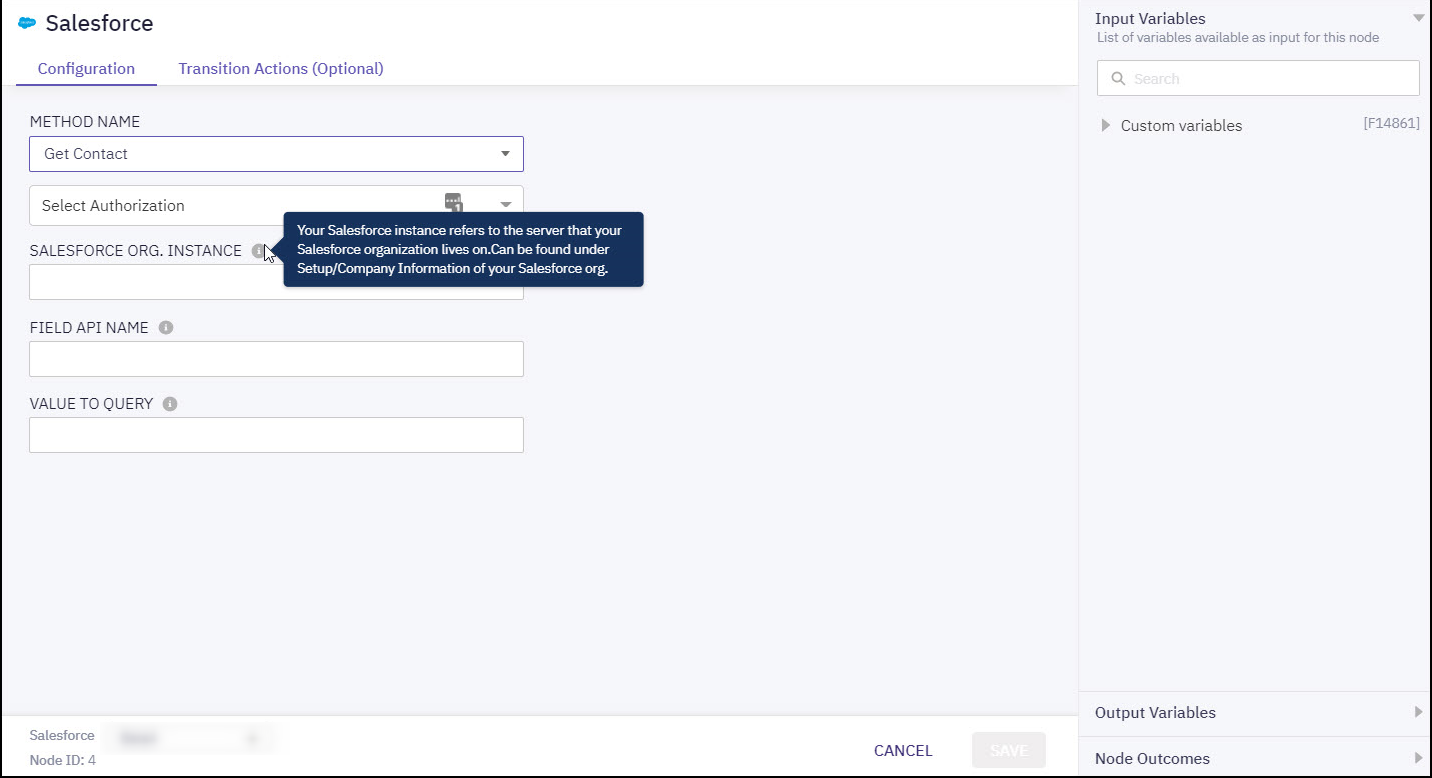
Get Contact method configuration page
-
You can see the data that this node generates under the Output Variables section. These variables are available for use in subsequent nodes. E.g., Get Contact method returns various fields associated with the searched contact in your Salesforce account.
-
You can see the list of possible node outcomes for this node under 'Node Outcomes' section. Examples include, 'No Content found', 'Multiple records', 'OnTimeout', etc.
Methods and Outcomes
Here’s a brief description of various methods, and corresponding output variables and node outcomes associated with each of the methods.
Method Name - Get Contact
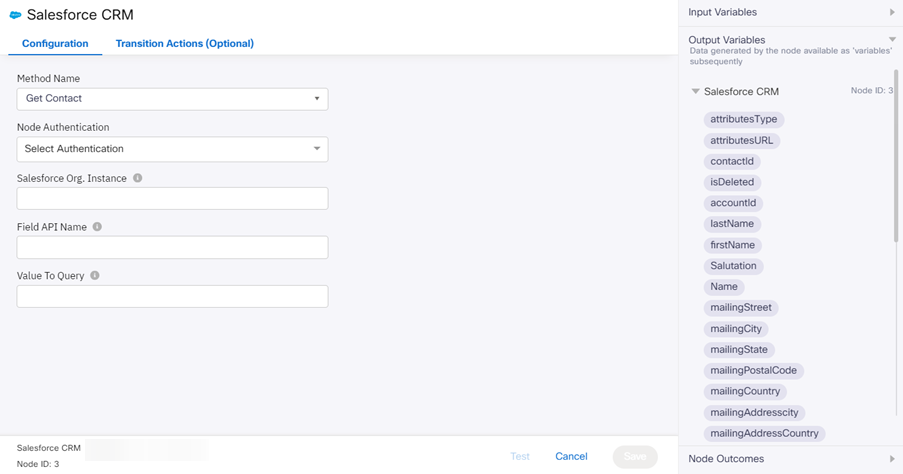
Get Contact method configuration page
Parameter Table
Following are the UI parameters that are required to call this method:
Input Variables | Output Variables | Node Outcomes |
|---|---|---|
Salesforce Org.Instance
Field API Name | attributesType contactId
isDeleted
firstName
lastName
Name
mailingStreet
mailingCity
mailingState
mailingPostalCode
mailingCountry
mailingAddresscity Phone
homePhone
assitantPhone
leadSource CreatedDate
CreatedById
lastModifiedDate
systemModStamp lastActivityDate lastViewedDate | Success Multiple records No content found Session expired Error |
Method Name - Insert Contact
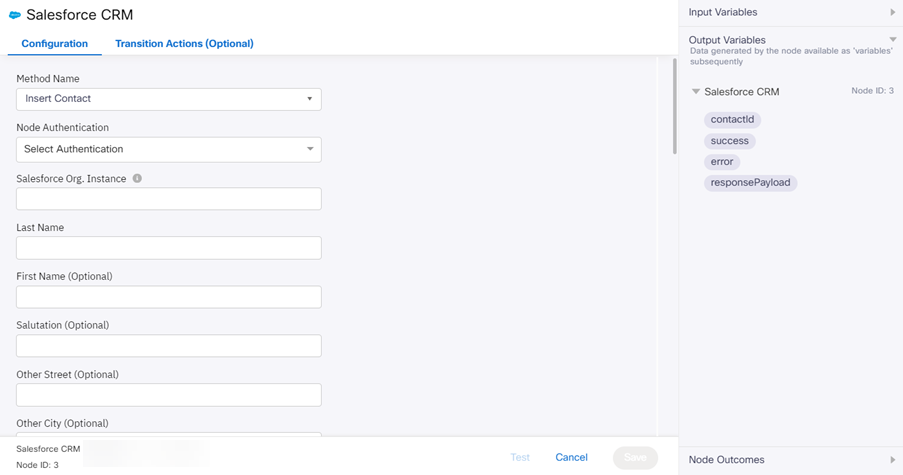
Insert Contact method configuration page
Parameter Table
Following are the UI parameters that are required to call this method:
Input Variables | Output Variables | Node Outcomes |
|---|---|---|
Salesforce Org.Instance
Last Name
First Name (Optional)
Salutation (Optional) Other Street (Optional)
Other City (Optional)
Other State (Optional)
Other Postal Code (Optional)
Other Country (Optional)
Phone (Optional)
Fax (Optional)
Mobile Phone (Optional)
Home Phone (Optional)
Other Phone (Optional)
Assistance Phone (Optional)
Report to ID (Optional) Email (Optional)
Title (Optional)
Department (Optional)
Assistant Name (Optional)
Lead Source(Optional) Birthdate
Description (Optional) | contactId success error | Success Error |
Method Name - Update Contact
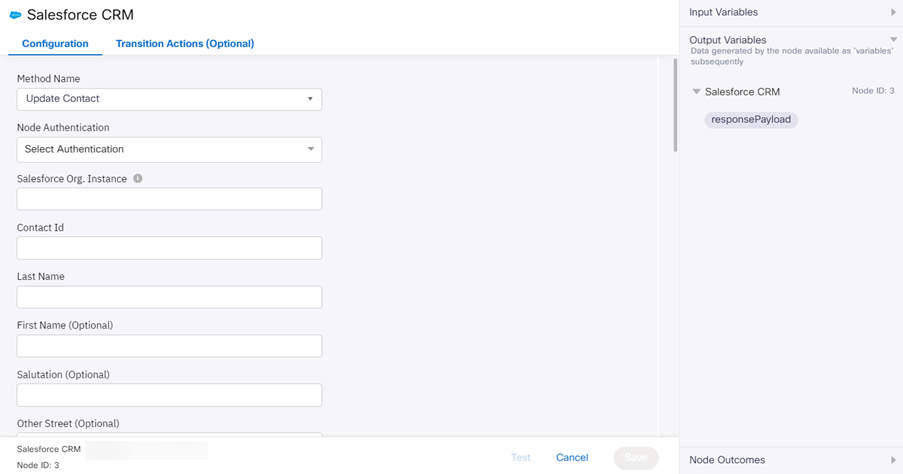
Update Contact method configuration page
Parameter Table
Following are the UI parameters that are required to call this method:
Input Variables | Output Variables | Node Outcomes |
|---|---|---|
Salesforce Org.Instance
Last Name
First Name (Optional)
Other Street (Optional)
Other City (Optional)
Other State (Optional)
Other Postal Code (Optional)
Other Country (Optional)
Mailing Street (Optional)
Fax (Optional)
Mobile Phone (Optional)
Home Phone (Optional)
Other Phone (Optional)
Assistance Phone (Optional)
Report to ID (Optional)
Title (Optional)
Department (Optional)
Assistant Name (Optional)
Lead Source(Optional) Birthdate
Description (Optional) | None | Success Error |
Method Name - Delete Contact
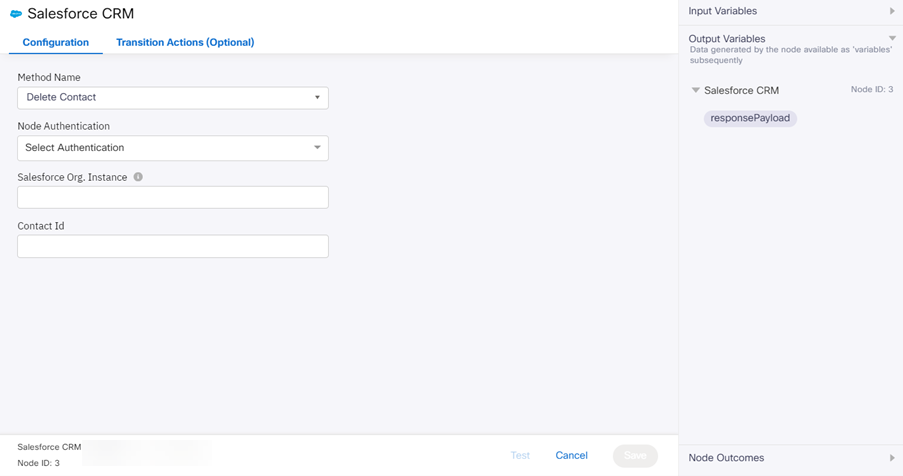
Delete Contact method configuration page
Parameter Table
Following are the UI parameters that are required to call this method:
| Input Variables | Output Variables | Node Outcomes |
|---|---|---|
Salesforce Org.Instance
| None | Success Error |
Method Name - Insert Case
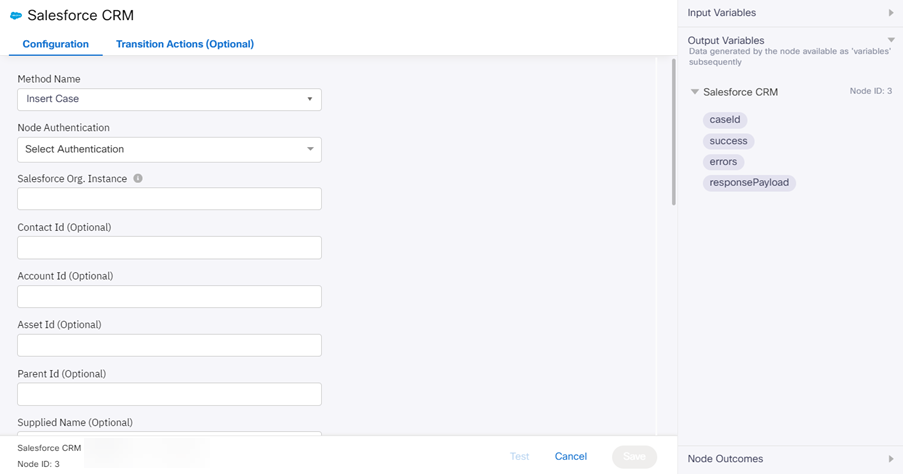
Insert Case method configuration page
Parameter Table
Following are the UI parameters that are required to call this method:
| Input Variables | Output Variables | Node Outcomes |
|---|---|---|
Salesforce Org.Instance
Asset ID (Optional) Account ID (Optional) Parent ID (Optional) Supplied Name (Optional) Supplied Email (Optional) Supplied Phone (Optional) Supplied Company (Optional) Type (Optional) Status Reason (Optional) Origin Subject (Optional) Priority (Optional) Description (Optional) Comment (Optional) | caseId success error | Success Error |
Method Name - Update Case
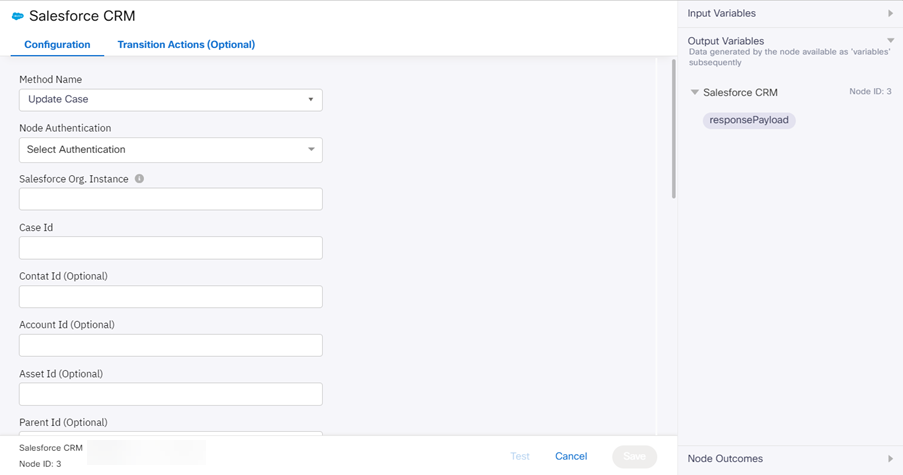
Update Case method configuration page
Method Name - Get Case
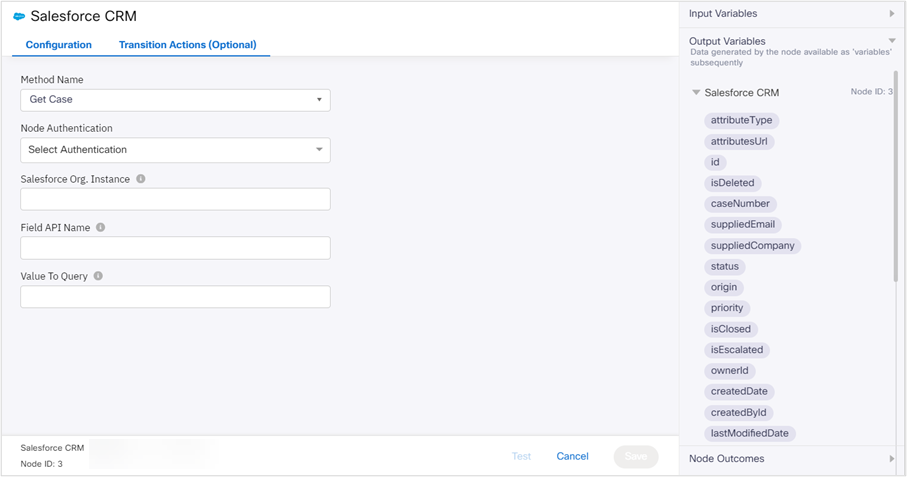
Get Case method configuration page
Method Name - Create Record
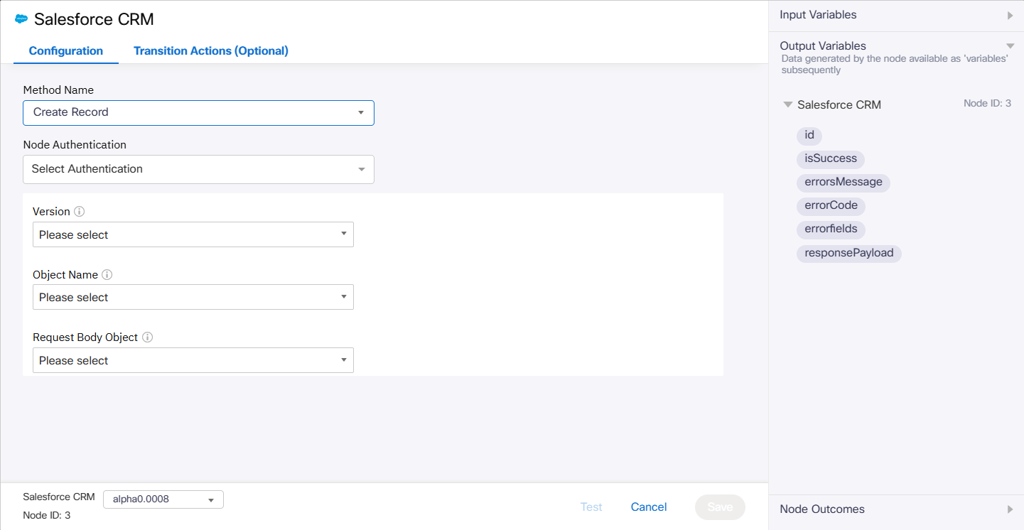
Create Record method configuration page
Parameter Table
Following are the UI parameters that are required to call this method:
| Input Variables | Output Variables | Node Outcomes |
|---|---|---|
| Node Authentication •Need to select valid Authorization configured inside Assets >Integrations >Pre-built Integrations (Authorization configuration must be the first step before using Salesforce pre-built integration). Version •Select Salesforce object version. It is recommended to use the latest version. Object Name •Objects are fetched specific to the version. This includes a list of standard and custom Salesforce objects. For example, select the object name as “Account.” Request Body Object •To pass the Complete Object as the request body object in the API request to Salesforce, pass the entire object as JSON in the Field(s). To pass the Individual Parameters as key value pairs in the request body object. The entered Key value pairs is passed as JSON to Salesforce. Field(s) •To include custom fields enable Dynamic Field(s) option and enter the Field API Name and Field Value. | id •The unique record ID of the created record. inSuccess •It is a Boolean value that returns True if the record creation is successful and False if it fails. errorsMessage •Error message provided by Salesforce when creating a record. errorCode •Error code provided by Salesforce when creating a record. error fields •Error fields provide the incorrect field names used in the configuration when creating a record. responsePayload •This will contain the entire response after making the create record call to Salesforce. | onInvalidData •Invalid data. onError •Error while invoking the method. onInvalidChoice •Invalid choice. onTimeout •When the integration didn’t receive any response before the timeout (10 seconds) duration. onauthorizationfail •When the selected Node Authorisation access token (token generated during authorisation) fails to authenticate it self. onCreateRecordSuccess •If HTTP status receive is 201. onBadRequest •If HTTP status received is 400. onCreateRecordFailure •If the HTTP status code received in the response is anything other than 201 or 400. |
Method Name - Get Record Using SOQL
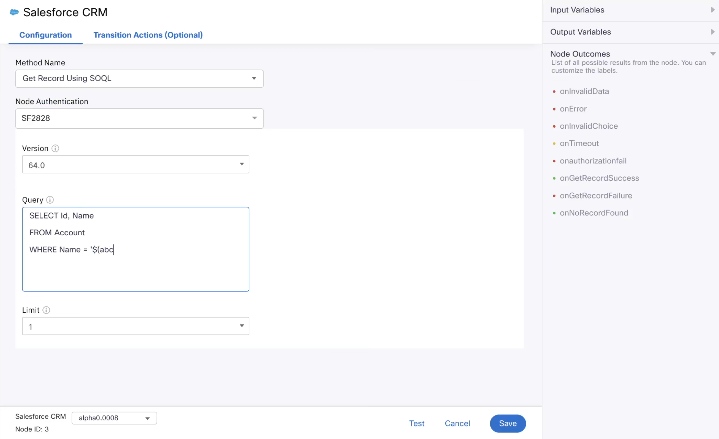
Get Record Using SOQL method configuration page
Parameter Table
Following are the UI parameters that are required to call this method:
| Input Variable | Output Variable | Node Outcomes |
|---|---|---|
| Node Authentication •Need to select valid Authorization configured inside Assets >Integrations >Pre-built Integrations (Authorization configuration must be the first step before using Salesforce pre-built integration). Version •Select Salesforce object version. It is recommended to use the latest version. Query •Specify the query to fetch the details using SOQL. To learn more of SOQL please visit - Salesforce Developers We advise to specify the number of rows to be returned by the SOQL query. This can be done using Limit in the query. You can use SOQL builder for writing the SOQL Query - Salesforce Developers | totalSize • An integer representing the total number of records matching the SOQL query. For example: Here, 2 represents that 2 records are found by executing the SOQL query isDone •It is a Boolean value returns True or False based on the result of the executed query. recordsArrayObject •Contains the Records values that are fetched from Salesforce. It contains JSON Array. For example a sample Account JSON would be : { "done": true, "totalSize": 2, "records": [ { "attributes": { "type": "Account", "url": "/services/data/v65.0/sobjects/Account/001xxxxxxxxxxxxxxx" }, "Id": "001xxxxxxxxxxxxxxx", "Name": "Sample Account 1" }, { "attributes": { "type": "Account", "url": "/services/data/v65.0/sobjects/Account/001yyyyyyyyyyyyyyyy" }, "Id": "001yyyyyyyyyyyyyyyy", "Name": "Sample Account 2" } ] } In above records parameter contains the record values in array of object format. errorMessage •Error message provided by Salesforce when trying to fetch the records. errorCode •Error provided by Salesforce when trying to fetch the records. responsePayload •This will contain the entire response received from Salesforce. | onInvalidData •Invalid data. onError •Error while invoking the method. onInvalidChoice •Invalid choice. onTimeout •When the integration didn’t receive any response before the timeout (10 seconds) duration. onauthorizationfail •When the selected Node Authorisation access token (token generated during authorisation) fails to authenticate it self. onGetRecordSuccess •If HTTP status received is 200. onGetRecordFailure •If HTTP status received is other than 200 and configured error HTTP status codes. onNoRecordFound •During the flow execution this edge will taken when total record size is 0 and HTTP status received is 200. |
Method Name - Get Record
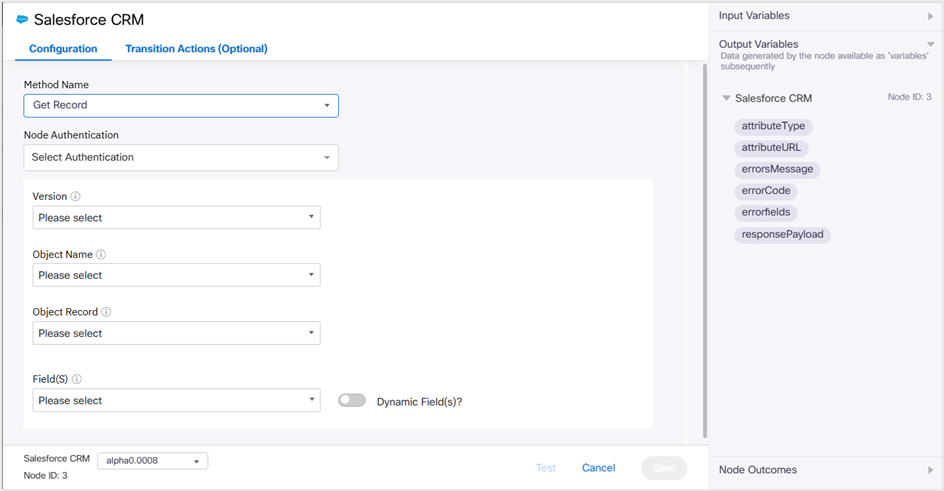
Get Record method configuration page
Parameter Table
Following are the UI parameters that are required to call this method:
| Input Variables | Output Variables | Node Outcomes |
|---|---|---|
| Node Authentication •Need to select valid Authorization configured inside Assets >Integrations >Pre-built Integrations (Authorization configuration must be the first step before using Salesforce pre-built integration). Version •Select Salesforce object version. It is recommended to use the latest version. Object Name •Objects are fetched specific to the version. This includes a list of standard and custom Salesforce objects. For example, select the object name as “Account.” Object Record •Please specify the account ID for which the record should be retrieved. Fields •Select the fields you need to fetch. If you have to fetch any dynamic fields. Toggle on the Dynamic fields option and pass the API name of the field, which is available in Salesforce Setup > Object Manager section. Multiple fields can be included using a comma separator. | attributeType •Type of attribute. attributeURL •AttributeURL will contain object URL. For Example: For the Account object, the URL will be “ “. errorMessage •Error message provided by Salesforce when trying to fetch the records. errorCode •Error provided by Salesforce when trying to fetch the records errorFields •Error fields provide the incorrect field names used in the configuration when trying to fetch the records. responsePayload •This will contain the entire response received from Salesforce. | onInvalidData •Invalid data. onError •Error while invoking the method. onInvalidChoice •Invalid choice. onTimeout •When the integration didn’t receive any response before the timeout (10 seconds) duration. onauthorizationfail •When the selected Node Authorisation access token (token generated during authorisation) fails to authenticate it self. onGetRecordSuccess •If HTTP status received is 200. onGetRecordFailure •If HTTP status received is other than 200 and configured error HTTP status codes. onNoRecordFound •This will appear when total record size is 0. |
Method Name - Update Record
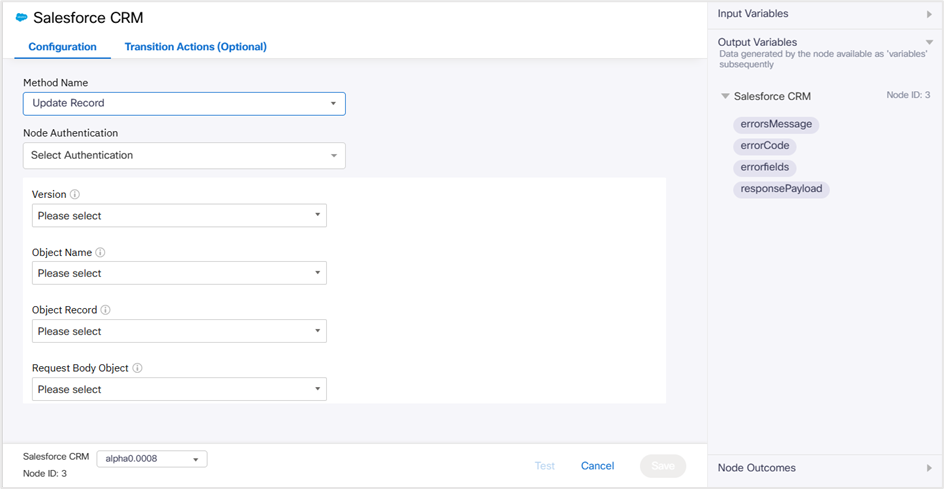
Update Record method configuration page
Parameter Table
Following are the UI parameters that are required to call this method:
| Input Variables | Output Variables | Node Outcomes |
|---|---|---|
| Node Authentication •Need to select valid Authorization configured inside Assets >Integrations >Pre-built Integrations (Authorization configuration must be the first step before using Salesforce pre-built integration). Version •Select Salesforce object version. It is recommended to use the latest version. Object Name •Objects are fetched specific to the version. This includes a list of standard and custom .Salesforce objects. For example, select the object name as “Account.” Object Record •Object record variables associated with the variables. Request Body Object •To select the Complete Object as the request body object, pass the entire object as JSON in the Field(s).To select the Individual Parameters as the request body object, pass the individual parameter. It will be shown as a key-value pair. Field(s) •To include custom fields enable Dynamic Field(s) option and enter the Field API Name and Field Value. | errorMessage •Error message provided by Salesforce when updating a record. errorCode •Error code provided by Salesforce when updating a record. errorfields •Error fields provide the incorrect field names used in the configuration when updating a record. responsePayload •This will contain the entire response received from Salesforce. | onInvalidData •Invalid data. onError •Error while invoking the method. onInvalidChoice •Invalid choice. onTimeout •When the integration didn’t receive any response before the timeout (10 seconds) duration. onauthorizationfail •When the selected Node Authorisation access token (tokens configured or fetched during authorisation setup) fails to authenticated by Salesforce. onUpdateRecordSuccess •If HTTP status received is 204. onUpdateRecordFailure •If HTTP status received is other than 204 and the specific error edges mentioned in the above node outcomes. |
Method Name - Delete Record
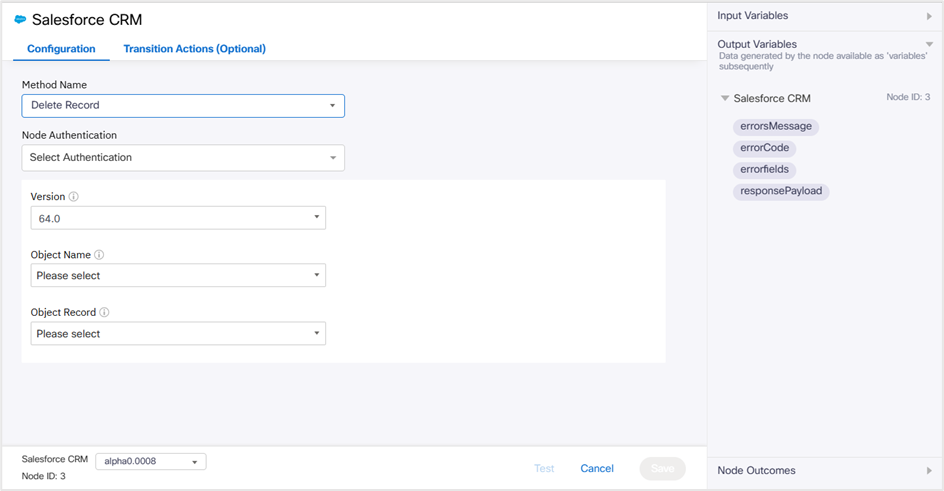
Delete Record method configuration page
Parameter Table
Following are the UI parameters that are required to call this method:
| Input Variables | Output Variables | Node Outcomes |
|---|---|---|
| Node Authentication •Need to select valid Authorization configured inside Assets >Integrations >Pre-built Integrations (Authorization configuration must be the first step before using Salesforce pre-built integration). Version •Select Salesforce object version. It is recommended to use the latest version. Object Name •Objects are fetched specific to the version. This includes a list of standard and custom Salesforce objects. For example, select the object name as “Account.” Object Record •Object record variables associated with the variables. | errorMessage •Error message provided by Salesforce when deleting a record. errorCode •Error code provided by Salesforce when deleting a record. errorfields •Error fields provide the incorrect field names used in the configuration when deleting a record. responsePayload •This will contain the entire response received from Salesforce. | onInvalidData •Invalid data. onError •Error while invoking the method. onInvalidChoice •Invalid choice. onTimeout •When the method could not be invoked before the timeout (10 seconds) duration. onauthorizationfail •When the selected Node Authorisation access token (token generated during authorisation) fails to authenticate it self. onDeleteRecordSuccess •If HTTP status received is 204. onDeleteRecordFailure •If HTTP status received is other than 204 and the specific error edges mentioned in the above node outcomes. |
Updated 5 months ago