
Chat - WXCC
Understand how to configure Chat channel asset on Webex Connect.
Cisco Webex Contact Center users who want to use Chat as a channel of customer support with Webex Contact Center can configure a Chat asset with Webex Connect by following the below steps:
Configure a Mobile-app Messaging Asset
Use this procedure to configure a separate Mobile/Web app asset for Webex Contact Center Mobile-app messaging on Android or iOS.
Before You Begin
Prepare the following details before you configure the asset:
- Android or iOS platform requirements for the mobile app.
- Push notification credentials for the selected mobile platform:
- APNs credentials for iOS.
- FCM credentials for Android.
- Public key or JWKS details for JWT asymmetric authentication.
- Token validity requirements based on the customer security policy.
- The Webex Connect service that hosts the inbound chat flows for Webex Contact Center.
Keep the private key in the customer backend only. Do not upload or expose the private key in Webex Connect.
Procedure
- Log in to Webex Connect.
- Go to Assets > Apps.
- Click Configure New App and select Mobile / Web.
- Enter a user-friendly name for the Mobile-app messaging asset.
- In the channel or platform selection area, select Mobile Push and/or In-App Messaging.
- Select the required mobile platform:
- Android
- iOS
- Both Android and iOS, if the same mobile app asset supports both platforms.
- Configure push notification credentials for the selected platform:
- For iOS, configure the required APNs credentials.
- For Android, configure the required FCM credentials.
- Enable Chat / In-App Messaging.
- Select MQTT or Web Socket from Primary Transfer Protocol.
- Select MQTT or Web Socket from Secondary Transfer Protocol.
- In Advanced Settings, enable JWT Authorization.
- Select Asymmetric Key as the JWT authorization method.
- Add the public JSON Web Key or JWKS details:
- Select Add JSON Web Key.
- Enter the JSON Web Key Name (required).
- Enter the JSON Web Key Issuer URL, if required.
- Upload the public JWK or JWKS JSON file when manual upload is used.
- Configure the Authorization Token Expiration Time in minutes.
- Click Save.
Configure a Web Chat Asset
Use this procedure to configure a Web Chat asset for Webex Contact Center website chat.
Before You Begin
Identify the Webex Connect service that hosts the inbound chat flows for Webex Contact Center.
Do not enable JWT Authorization for the Web Chat asset. JWT Authorization is used for Mobile-app messaging assets and must not be enabled for the Web Chat asset.
Procedure
-
Log in to Webex Connect.
-
Go to Assets > Apps.
-
Click Configure New App and select Mobile / Web.
-
Enter a user-friendly name for the Web Chat asset.
-
If channel or platform selection is shown, select Web for the Web Chat asset.
-
Enable Chat to display the Chat configuration section.
-
Select MQTT or Web Socket from Primary Transfer Protocol.
-
Select MQTT or Web Socket from Secondary Transfer Protocol.
For example, if you selected MQTT as the primary protocol, select Web Socket as the secondary protocol.
-
Select Use Secured Port.
This setting is mandatory for Webex Connect and Cisco Webex Contact Center integration.
-
Do not select Enable payload encryption.
This setting is not applicable for Webex Connect and Cisco Webex Contact Center integration.
-
In Advanced Settings, ensure that JWT Authorization is not enabled.
-
Click Save.
Registering your Chat App Asset with Webex Contact Center
Once you’ve successfully configured your Chat asset with Webex Connect, you can register it with Webex Engage by following the below steps:
- Go to Assets > Apps.
- Select Mobile / Web option in the ‘App Type’ drop-down list box.
- Click the required Chat asset.
- Click 'Register to Webex Engage'.
The Register to Webex Engage pop-up displays.
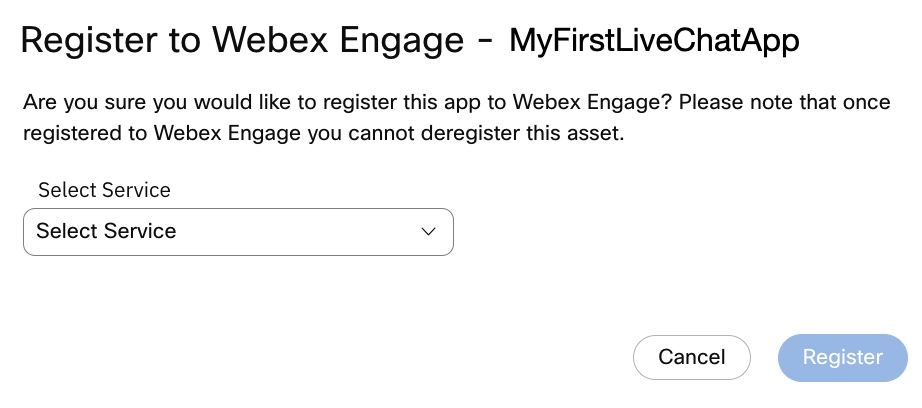
Screenshot of Register to Webex Engage.
- Select the required service and click Register (Note: this should be the Webex Connect service that would be used for configuring Chat flows for Webex Contact Center).
- Click Register.
- You cannot change the service mapping once done. Hence, the asset registration on Webex Engage should be done after the service to be used has been decided.
- Do not delete a Chat asset once it's been registered with Webex Engage. Once deleted it cannot be restored. Doing so would lead to asset deletion within Webex Connect alone while the entry continues to be in Webex Contact Center and Webex Engage.
A message displays “Asset registered successfully”. This completes the asset registration for Webex Contact Center.
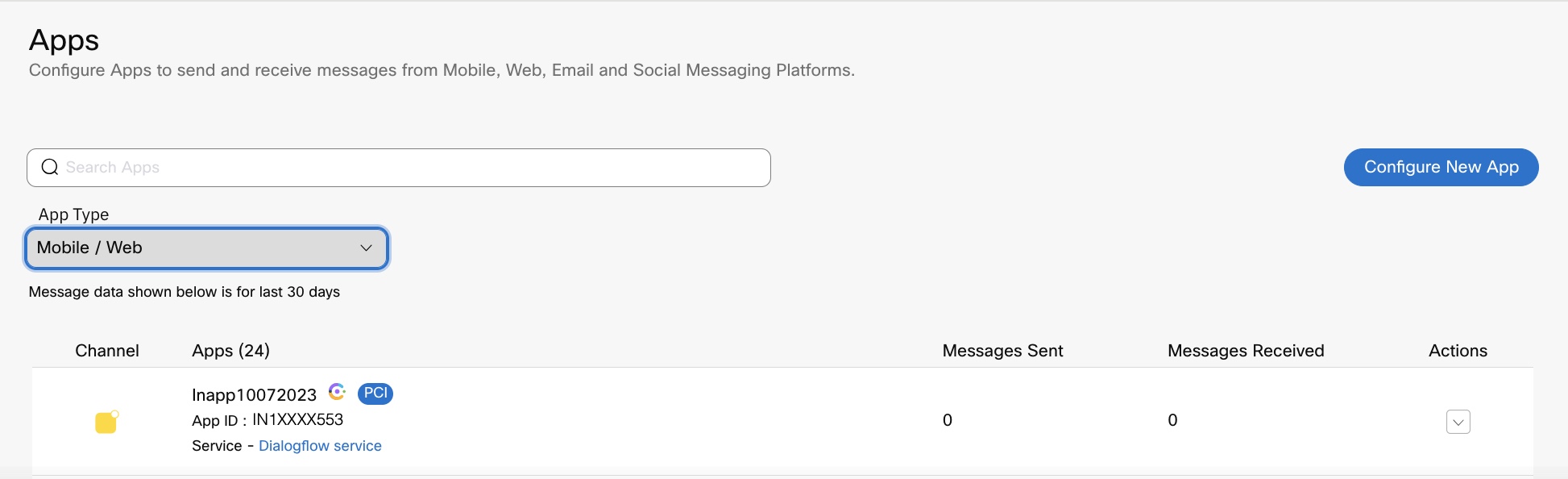
Screenshot displaying the Webex Contact Center icon and PCI check enabled flag next to a mapped Mobile/ Web Asset.
As shown above, you will see a Cisco Webex Contact Center icon and a PCI check enabled flag next to the Chat asset once it's been successfully mapped with Webex Contact Center.
Once the asset is registered, this asset will be available for entry point mapping in the Cisco Webex Contact Center portal.
The Chat widget design configuration needs to be done within Webex Engage. The code for embedding a chat widget on your website also is available within Webex Engage.
Reregister the Chat Asset
Reregister the Chat asset when changes to the asset configuration must be synchronized with Webex Contact Center or Webex Engage.
Procedure
- Go to Assets > Apps.
- From the App Type drop-down list, select Mobile / Web.
- Select the registered Chat asset.
- Click Reregister or the equivalent reregister action shown in the Webex Connect UI.
- Review the Webex Connect service selected for the asset.
- Click Register or Reregister to complete the update.
- Confirm that the asset is reregistered successfully.
When to Reregister
| Change | Reregister behavior |
|---|---|
| Push settings changed | Reregister the asset so Webex Engage receives the updated mobile push configuration. |
| Chat / In-App Messaging settings changed | Reregister after changes such as switching the primary or secondary transfer protocol between MQTT and WebSocket. |
| JWT setting changed | Reregister the asset so downstream systems receive the updated JWT-enabled state. |
Updated about 1 month ago