
mTLS Configuration for Outbound Webhooks
Understand how you can add an mTLS (Mutual Transport Layer Security) certificate for Outbound Webhook.
mTLS (Mutual Transport Layer Security) is a security protocol that ensures both parties in a communication (for example, a client and a server, such as Webex Connect and an external system) authenticate each other before establishing a secure connection.
This provides step-by-step instructions for configuring mTLS on outbound webhooks in Webex Connect.
Follow these steps to configure mTLS on the Outbound Webhook:
-
Navigate to Assets > Integrations.
-
Click Add Integration > Outbound Webhook.
-
Select the Add mTLS Certificate (optional) checkbox to enable mTLS for secure webhook configuration. Adding mTLS uses certificates to authenticate both the client and the server.
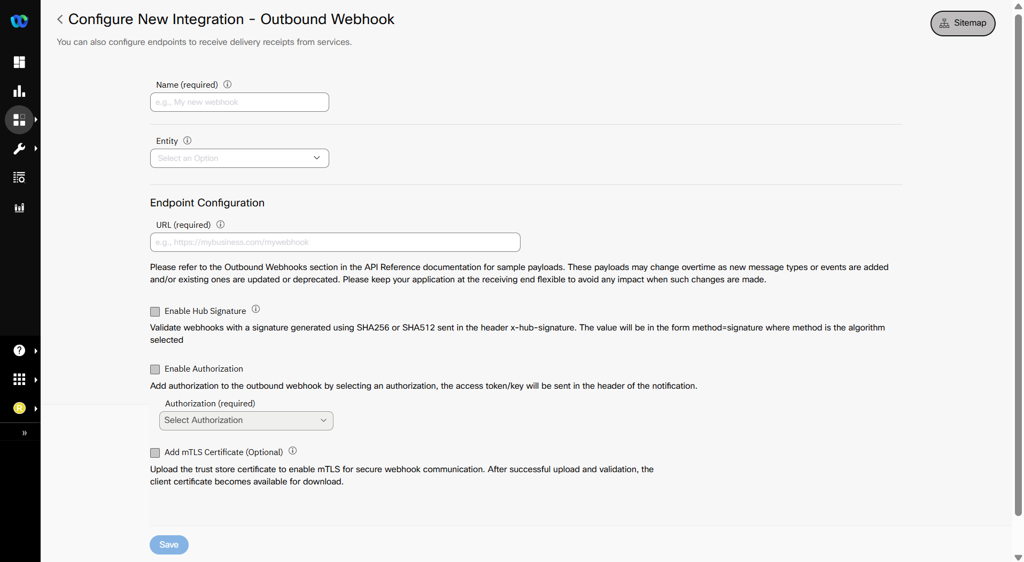
Add mTLS Certificate
-
After selecting Add mTLS Certificate (optional), the "Configure Trust Store Certificate" appears.

Configure Trust Store Certificate
-
Click +Add New to add a new certificate. Only one certificate can be added. You can upload only .p12 or JKS certificates.
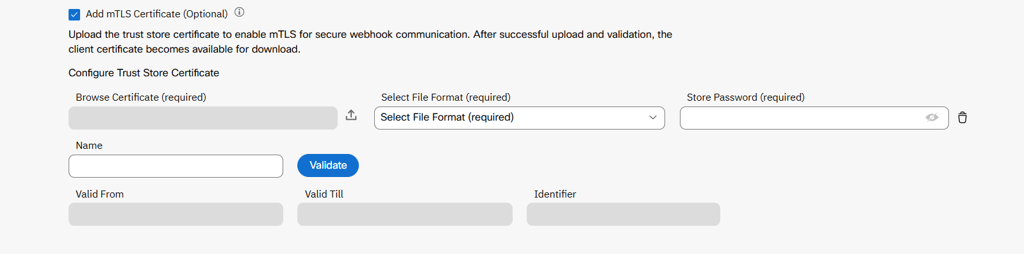
Upload mTLS Certificate
-
Select Browse Certificate (required), choose the server certificate. Select File Format (required) and enter the Store Password. You can upload only .p12 or .jks certificates.
-
Click Validate. A valid certificate shows the Valid Till expiry and the Identifier.
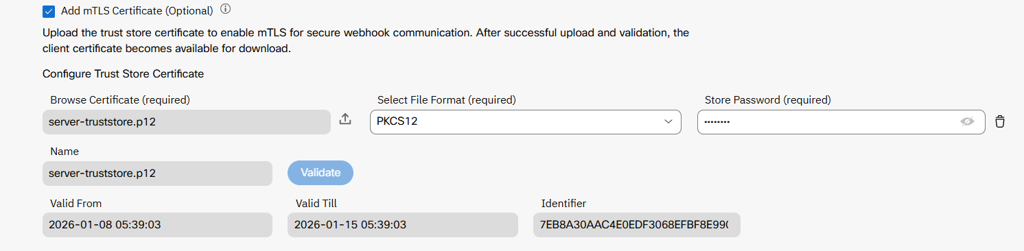
Validate Certificate
-
Upon validating a certificate, install this client certificate (and intermediate Certificate Authority (CA), if applicable) in your server’s trust store. Configure your server to require client certificate validation to authenticate webhook requests from Webex Connect. Keep both the Active and New certificates installed on your server until the old certificate expires to ensure uninterrupted webhook delivery. After installing the client certificate, click Test to verify that the connection is established successfully.
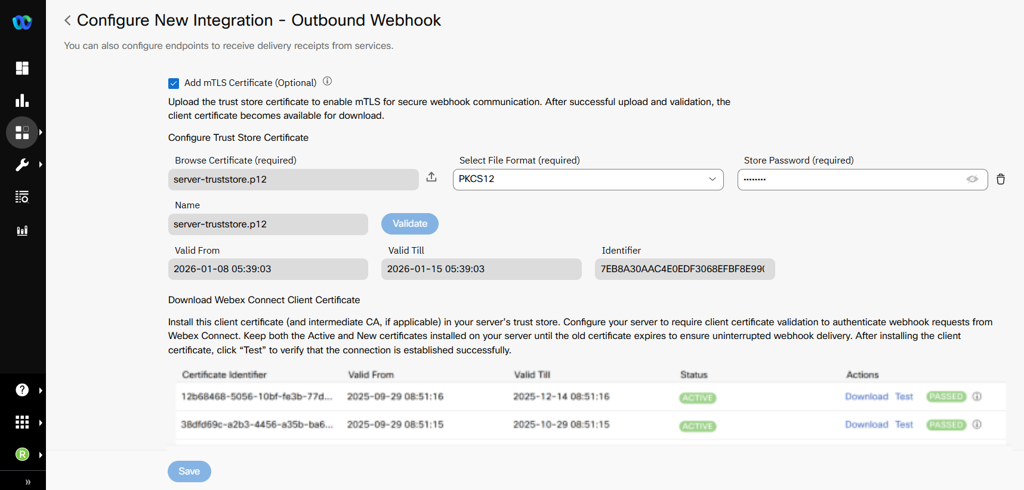
Download & Test Button Appears on the Certificate
Note
Add mTLS certificate is not available by default. To enable this for your tenant, please contact your account manager.
Updated 9 months ago