
RCS
Reach out to your customers with rich messages in their default SMS inbox
RCS (Rich Communication Service) is a next-generation protocol that allows for richer forms of messaging such as cards, carousels, and attachments within the SMS inbox.
Enabling an RCS Application
You must have an RCS enabled chatbot application and be prepared to share chatbot details to all available terminating operators for your program to be fully functional within any given country. With proper planning and preparation. It takes approximately 7 days to configure a simple messaging program.
RCS Messaging application building components
- Program Name
- Brand logo
- Chatbot description
- Contact information
- Privacy policy link
- Terms and Conditions link
- Header images in varied sizes depending on device
Configure RCS application on Webex Connect
- To configure the RCS app, sign in to the Webex Connect platform, go to Assets > Apps .
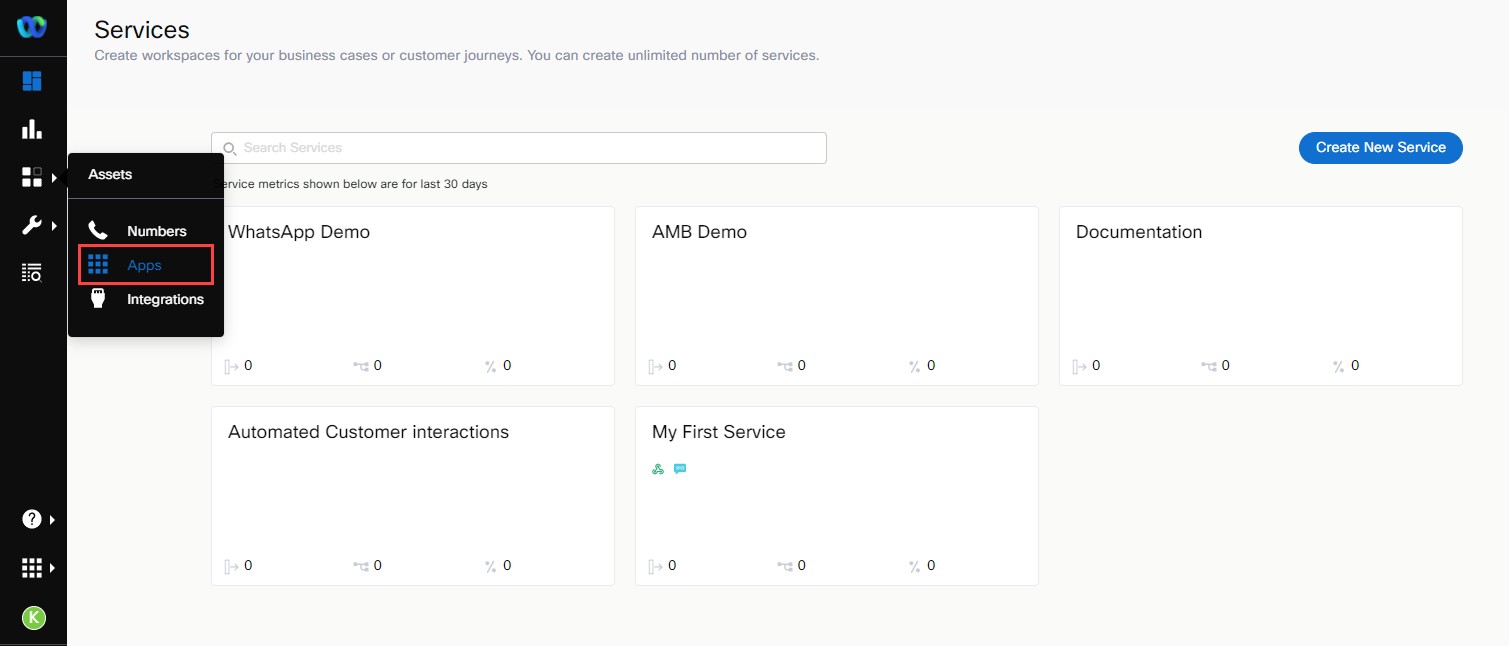
Selecting the Apps from Assets Menu.
- On the Apps page, click the Configure New App button and choose RCS from the drop-down list of apps.
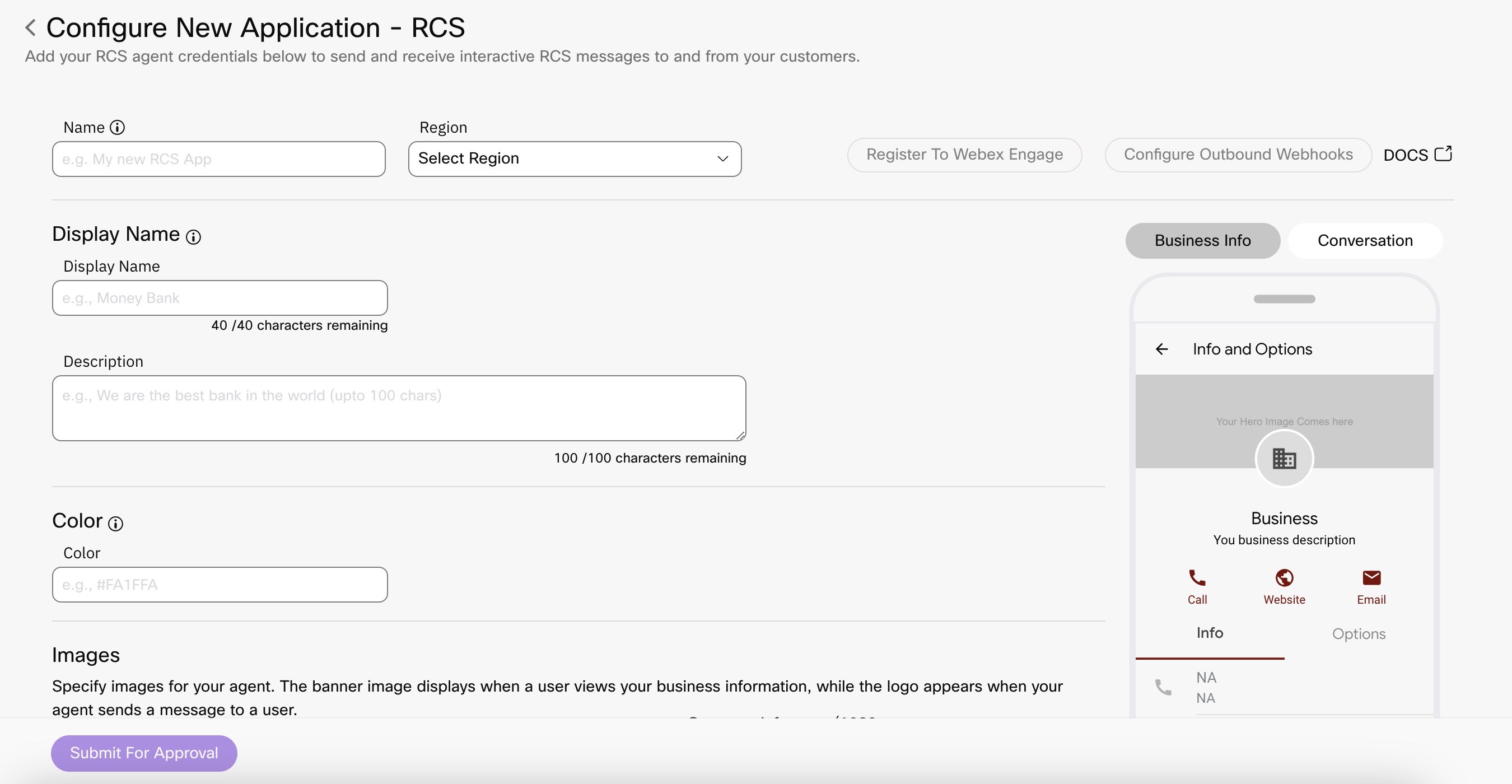
Screenshot of Configuring New RCS Application.
- Click Submit for Approval.
Approval Process
After you populate all the required fields, the "Submit For Approval" button will become active. At this point, your RCS Application will be set up for testing with the carriers and requires approval in order to be launched into production. You can work with your client team on this process. Please reach out to your account manager for more information.
You are essentially configuring how your brand appears to the user on the messages app on this page.
Using the channel
User Identity
To message users on RCS you will need the users phone number.
Capability
All phone numbers may not have RCS capability.
If you are using Messaging API v2, you can use options block to fall back to SMS
If you are using flows, RCS capabilities node allows you to query the capabilities of a number
API
Here is a Postman collection to test our APIs. Make sure you change the key in the header to your service key.
Latest Collection: 
Archived Collection: Refer Postman Collection
Download Postman from official site.
Webhooks
Once an RCS app is configured, you can configure Outbound Webhooks by choosing the RCS app from the entity dropdown to receive incoming messages and events from your customers
{
   "channel":"rcs",
   "msisdn":"+91630XXXX252",
   "message":"RCSTest2",
   "appId":"a_1570171XXXX6805250",
   "event":"MO",
   "ts":"2019-10-23T02:10:49.466-03:00",
   "tid":"42392840-09c2-XXXX-XXXX-8676413befe1",
   "serviceProvider":"GOOGLE",
   "carrier":"N/A",
}
{
    "channel": "rcs",
    "msisdn": "+91630XXXX252",
    "appId": "a_1570171XXXX6805250",
    "event": "ATTACHMENT",
    "ts": "2019-10-21T06:28:15.644-03:00",
    "tid": "471957e9-c5e8-XXXX-XXXX-2141e66acc35",
    "serviceProvider": "GOOGLE",
    "carrier": "N/A",
    "attachments": "[{\"payload\":{\"url\":\"https://rcs-user-content-us.storage.googleapis.com/407b434c-ea2a-4d24-9e73-d5c1dbf0f5f7/0f37f034c3764ac3400adc09b5307df91ca31a47b2ef229fc59588537902\"},\"type\":\"video\"}]"
}
{
   "channel":"rcs",
   "msisdn":"+91630XXXX252",
   "appId":"a_1570171XXXX6805250",
   "event":"Location",
   "ts":"2019-10-17T14:34:58.808+03:00",
   "tid":"475794b6-8bdb-XXXX-XXXX-e20bae8c11a3",
   "serviceProvider":"GOOGLE",
   "carrier":"N/A",
   "latitude":"17.434679",
    "longitude":"78.3985752"
}
{
	"channel":"rcs",
	"msisdn":"+91630XXXX252",
	"message":"SHOW ME MY RESULTS 😀",
	"appId":"a_1570171XXXX6805250",
	"event":"ONPOSTBACK",
	"ts":"2019-10-21T06:22:59.976-03:00",
	"tid":"e78cb435-d70f-XXXX-XXXX-1c026febacd5",
	"serviceProvider":"GOOGLE",
	"carrier":"N/A"
}
To receive delivery receipts of the messages you sent out, configure Outbound Webhooks on the service you sent the message from.
{
  "deliveryInfoNotification": {
    "deliveryInfo": {
      "timeStamp": "2019-10-17T14:14:30.495-04:00",
      "Description": "Submitted",
      "code": "7501",
      "deliveryChannel": "rcs",
      "additionalInfo": "",
      "destination": "+91630XXXX1252",
      "destinationType": "",
      "deliveryStatus": "Submitted"
    },
    "subtid": "c74fd072-7ed7-XXXX-XXXX-66a3b6f06dd6",
    "transid": "c74fd072-7ed7-XXXX-XXXX-66a3b6f06dd6",
    "callbackData": "",
    "correlationid": ""
  }
}
{
  "deliveryInfoNotification": {
    "deliveryInfo": {
      "timeStamp": "2019-10-17T14:14:35.981-04:00",
      "Description": "Delivered",
      "code": "7500",
      "deliveryChannel": "rcs",
      "additionalInfo": "",
      "destination": "+91630XXXX252",
      "destinationType": "",
      "deliveryStatus": "Delivered"
    },
    "subtid": "c74fd072-7ed7-XXXX-XXXX-66a3b6f06dd6",
    "transid": "c74fd072-7ed7-XXXX-XXXX-66a3b6f06dd6",
    "callbackData": "",
    "correlationid": ""
  }
}
{
  "deliveryInfoNotification": {
    "deliveryInfo": {
      "timeStamp": "2019-10-17T14:14:39.124-04:00",
      "Description": "Read",
      "code": "7502",
      "deliveryChannel": "rcs",
      "additionalInfo": "",
      "destination": "+91630XXXX252",
      "destinationType": "",
      "deliveryStatus": "Read"
    },
    "subtid": "c74fd072-7ed7-XXXX-XXXX-66a3b6f06dd6",
    "transid": "c74fd072-7ed7-XXXX-XXXX-66a3b6f06dd6",
    "callbackData": "",
    "correlationid": ""
  }
}
{
  "deliveryInfoNotification": {
    "deliveryInfo": {
      "timeStamp": "2019-10-18T01:03:06.954-04:00",
      "Description": "Invalid media details",
      "code": "7740",
      "deliveryChannel": "rcs",
      "additionalInfo": "Invalid media URL",
      "destination": "+91630XXXX252",
      "destinationType": "msisdn",
      "deliveryStatus": "Failed"
    },
    "subtid": "",
    "transid": "e94cc49e-a9c7-XXXX-XXXX-8b06c48fdc9d_10977_22757",
    "callbackData": "",
    "correlationid": ""
  }
}
Message Type
RCS supports the following message types -
- Text
- Media
- Rich Card
- Carousel
- Typing Indicator
Flow
In a flow, you can configure the Receive node to receive messages from RCS users and the RCS Message Node node enables you to deliver messages to the RCS user.
FAQs
You can refer to the RCS channel FAQs for contextual information.
Regions where Webex Connect has connectivity
Webex Connect today has RCS connectivity in the following countries -
Europe -
- United Kingdom
- France
- Spain
- Germany
- Norway
- Sweden
- Greece
- Italy
- Austria
- Belgium
- Netherland
- Romania
- Portugal
North America -
- United States of America
- Canada
- Mexico
South America -
- Brazil
- Peru
Middle East & Africa -
- Jordan
- Nigeria
- DR Congo
- South Africa
Updated 3 months ago